
How to use the Mammouth API in OpenClaw
Prerequisites
- A running OpenClaw instance (see openclaw.ai for installation)
- A Mammouth account with API access enabled
- Your Mammouth API key (get it from mammouth.ai/app/account/settings/api)
Step 1 — Get your Mammouth API key
- Go to mammouth.ai/app/account/settings/api
- Generate a new API key
- Copy and store it somewhere safe — you'll need it in the next step
Step 2 — Check available models
The Mammouth API exposes the list of available models at: https://api.mammouth.ai/public/models
Pick the model IDs you want to use in your OpenClaw config. For example: gpt-4.1, kimi-k2.5, etc.
Step 3 — Configure OpenClaw
Your OpenClaw config may be different, but we recommend setting an env variable
The config below references ${MAMMOUTH_API_KEY}.
Either export it if you run OpenClaw directly on your computer
export MAMMOUTH_API_KEY="your-mammouth-api-key-here"
openclaw
Or add it permanently to your shell profile (~/.bashrc, ~/.zshrc, etc.):
echo 'export MAMMOUTH_API_KEY="your-mammouth-api-key-here"' >> ~/.zshrc
source ~/.zshrc
Or set it as an env variable accessible to your docker setup, example if you use docker compose:
environment:
  - MAMMOUTH_API_KEY=${MAMMOUTH_API_KEY:-}
Next, edit your OpenClaw config file accordingly (usually ~/.openclaw/config.json5 or via openclaw config edit) so that it contains:
{
  models: {
    providers: {
      litellm: {
        baseUrl: "https://api.mammouth.ai",
        apiKey: "${MAMMOUTH_API_KEY}",
        api: "openai-completions",
        models: [
          {
            id: "gpt-4.1",
            name: "GPT-4.1 (Mammouth)",
            reasoning: false,
            input: ["text", "image"],
            contextWindow: 1000000,
            maxTokens: 32768,
          },
          {
            id: "claude-sonnet-4-6",
            name: "Claude Sonnet 4.6 (Mammouth)",
            reasoning: true,
            input: ["text", "image"],
            contextWindow: 200000,
            maxTokens: 64000,
          },
          {
            id: "kimi-k2.5",
            name: "Kimi K2.5 (Mammouth)",
            reasoning: false,
            input: ["text", "image"],
            contextWindow: 262144,
            maxTokens: 262144,
          },
        ],
      },
    },
  },
  agents: {
    defaults: {
      model: { primary: "litellm/kimi-k2.5" }, // chose the default model here
    },
    models: {
      "anthropic/claude-sonnet-4-6": {},
      "litellm/kimi-k2.5": {},          # important, add your models here so you can switch dynamically with the /models command in your favorite chat app
      "litellm/gpt-4.1": {},            # important
      "litellm/claude-sonnet-4-6": {},  # important
    },
  },
}
Step 4 — Verify the connection
Once OpenClaw is running, start a new session and ask something simple. If everything is wired up correctly, your agent will respond using the Mammouth API.
Use the /models in your chat to see the different providers and their models.
Example (using anthropic as default with Mammouth LiteLLM compatible provider configured): 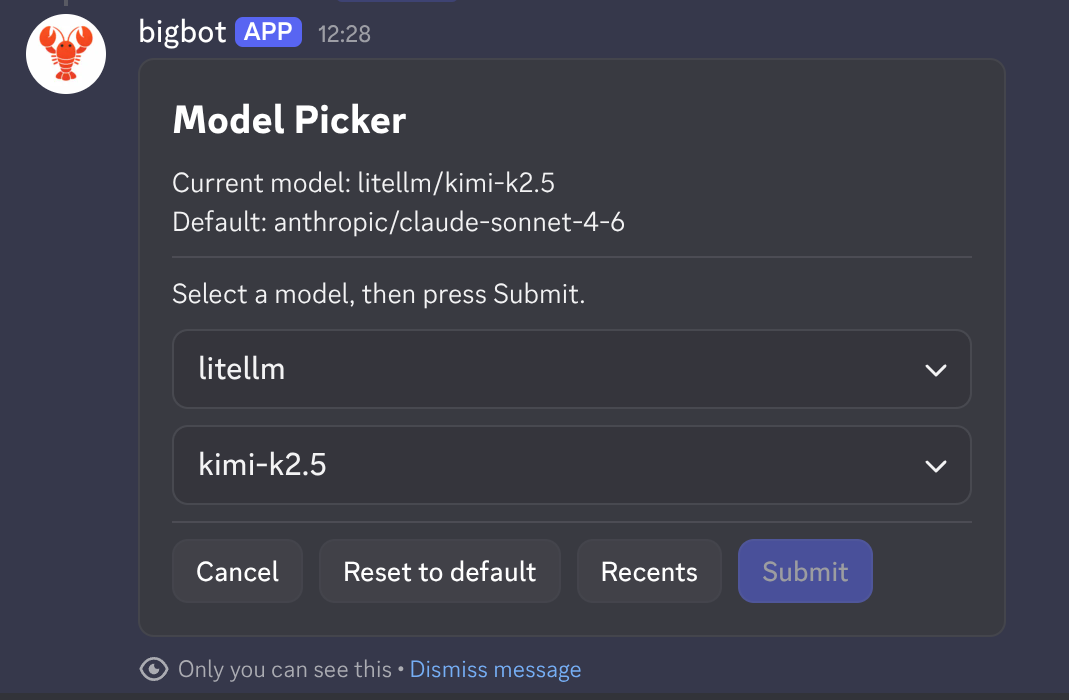
You can also confirm from the CLI:
openclaw statusMonitoring usage
Keep an eye on your API consumption from your Mammouth dashboard:
👉 mammouth.ai/app/account/settings/api
See also
- API Quick Start — general Mammouth API docs
- How to use Mammouth with Cline — similar setup for VS Code / Cursor
- OpenClaw LiteLLM provider docs