How to use Mammouth in VS Code, JetBrains or Cursor with the Cline Extension
Setup Cline
- Install Cline extension
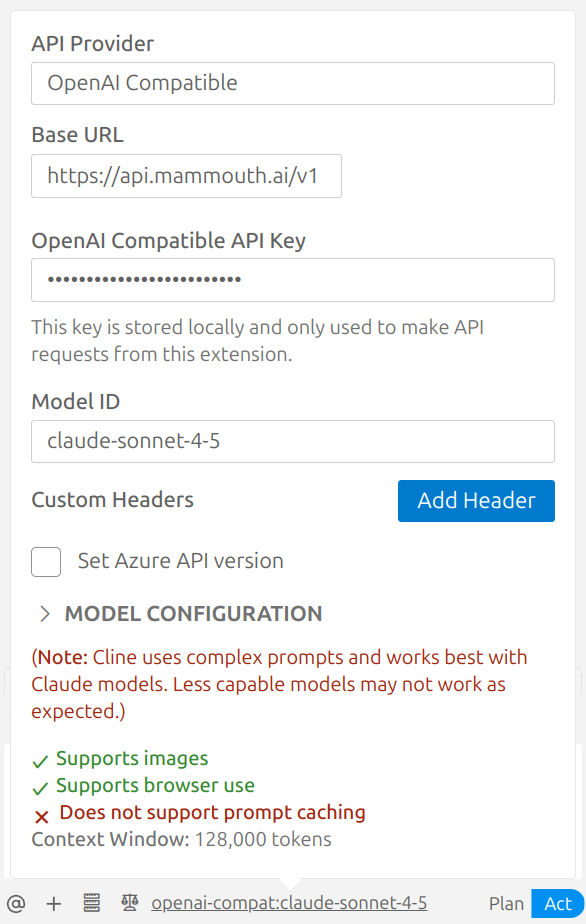
In Cline settings:
- API Provider: OpenAI Compatible
- Base URL : https://api.mammouth.ai/v1
- Get Mammouth API key from mammouth.ai/app/account/settings/api
Enter the API key you retrieved from your Mammouth AI account - Obtain the specific Model ID from https://api.mammouth.ai/public/models and input it in the configuration
Usage
You can now use Cline using your Mammouth API Key.
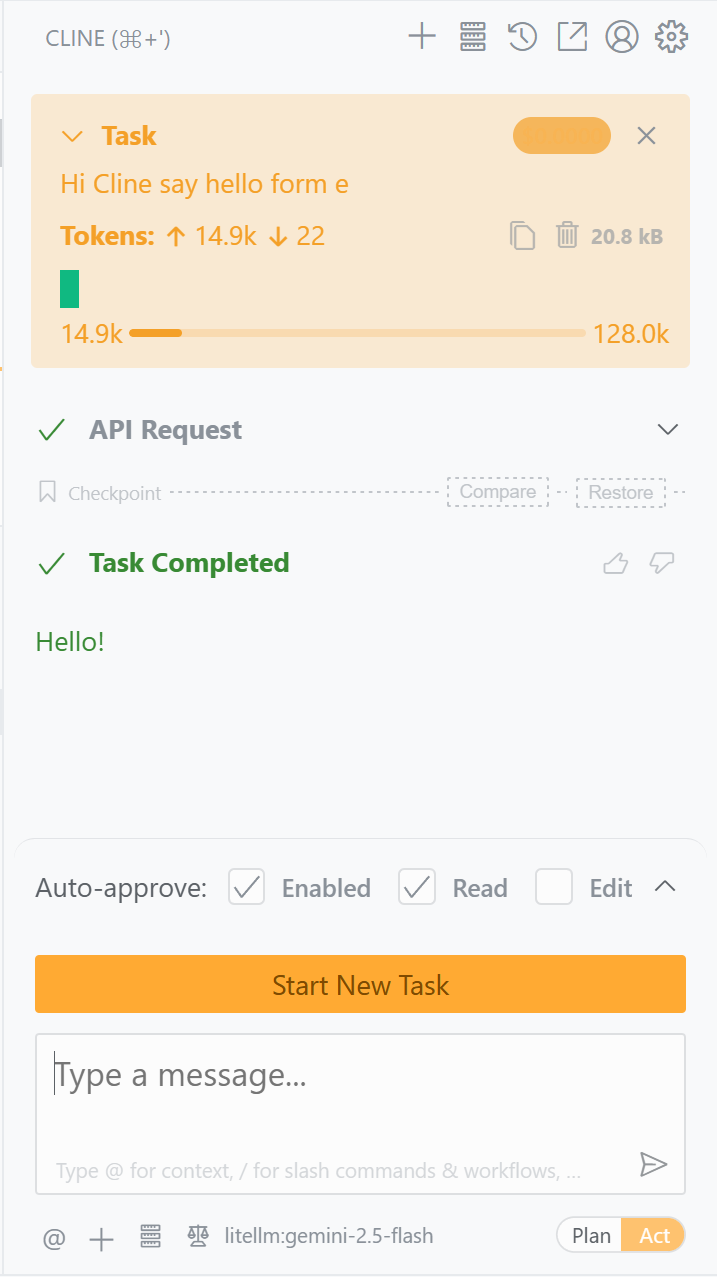
At the top, you get the number of Tokens sent, received, and total supported by that model, as well as the task name (which is your first "prompt")
Get your model's prices from https://api.mammouth.ai/public/models and add them on the "Model Configuration" section to track spending directly on Cline.
If you want to see how your budget usage is going, please check: mammouth.ai/app/account/settings/api
For now, prompt caching isn't supported.
Use the temperature parameter in Cline's Model Configuration advanced settings to control creativity (0.0 for deterministic, up to 2.0 for more creative).