

Use Mammouth as a search engine
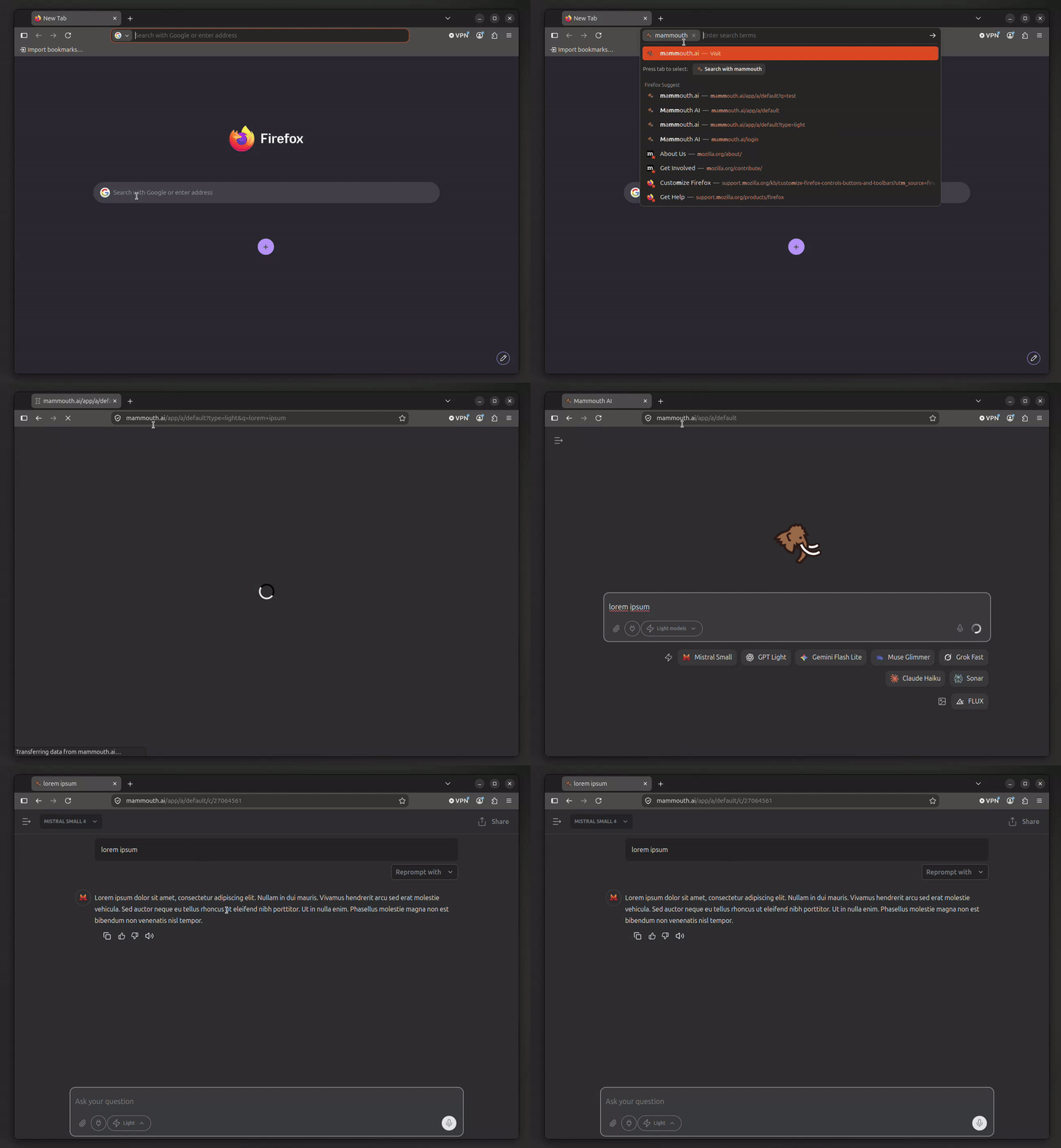
You can send a prompt to Mammouth straight from your browser's search bar. Add Mammouth as a search engine in your browser (Firefox, Chrome, Edge, Brave, Vivaldi…): then just type a shortcut, for example m, followed by your question in the address bar. Mammouth opens a new conversation and sends the prompt automatically.
🔗 How the URL works
A Mammouth URL with a prompt is made of three parts:
| Part | Role | Example |
|---|---|---|
/app/a/default | Sends the prompt to your default mammouth | https://mammouth.ai/app/a/default |
/app/a/<number> | Sends the prompt to a custom mammouth | https://mammouth.ai/app/a/12345 |
type | The model category to use (light, web, text, reasoning, image, music, video) | &type=image |
q | The prompt to send (required, limited to 1,000 characters; use %s for browsers) | ?q=Hello |
https://mammouth.ai/app/a/<mammouth>?type=<category>&q=<prompt>🦊 Add Mammouth as a search engine
Browsers replace %s with the text you type in the address bar. In the URL, replace default with your custom mammouth's number to use its model preference order and the system prompt that applies to it.
INFO
First sign in to Mammouth in the browser you are setting up. Browsers block direct links to their settings: copy the settings address and paste it into the address bar.
🔗 Quick links
https://mammouth.ai/app/a/default?type=light&q=%shttps://mammouth.ai/app/a/12345?q=%shttps://mammouth.ai/app/a/default?q=%shttps://mammouth.ai/app/a/default?q=%s&type=webhttps://mammouth.ai/app/a/default?q=%s&type=reasoning⚙️ What happens when the link opens
Mammouth opens a new conversation with the mammouth specified in the URL.
Limits and security
- 1,000 characters maximum: beyond that, the prompt is not sent.
- Connectors enabled: if you have enabled connectors, Mammouth asks you to confirm the prompt.
- No agentic mode: a prompt sent this way cannot activate agentic mode.
Only open links you trust
A link containing ?q= sends a prompt from your account as soon as it opens. Do not open such a link if you don't know where it came from.